Choosing a Computer for Astro Image Processing: CPU, RAM, SSD, and Real-World Benchmarks
This article is compiled from notes and hands-on benchmarks taken between 2020 and 2024. The CPU and graphics card models, memory prices, and benchmark scores mentioned here all shift over time, so please base your purchasing decisions on current market information.
“What kind of computer should I build to run PixInsight?” is a common question in the community. Over the past few years I’ve gone through several machines and tested quite a few configurations with the official benchmark script. This article organizes what I’ve learned into a buying guide arranged by component, along with the changes in benchmark scores I’ve recorded along the way.
First, a Word on the PixInsight Benchmark
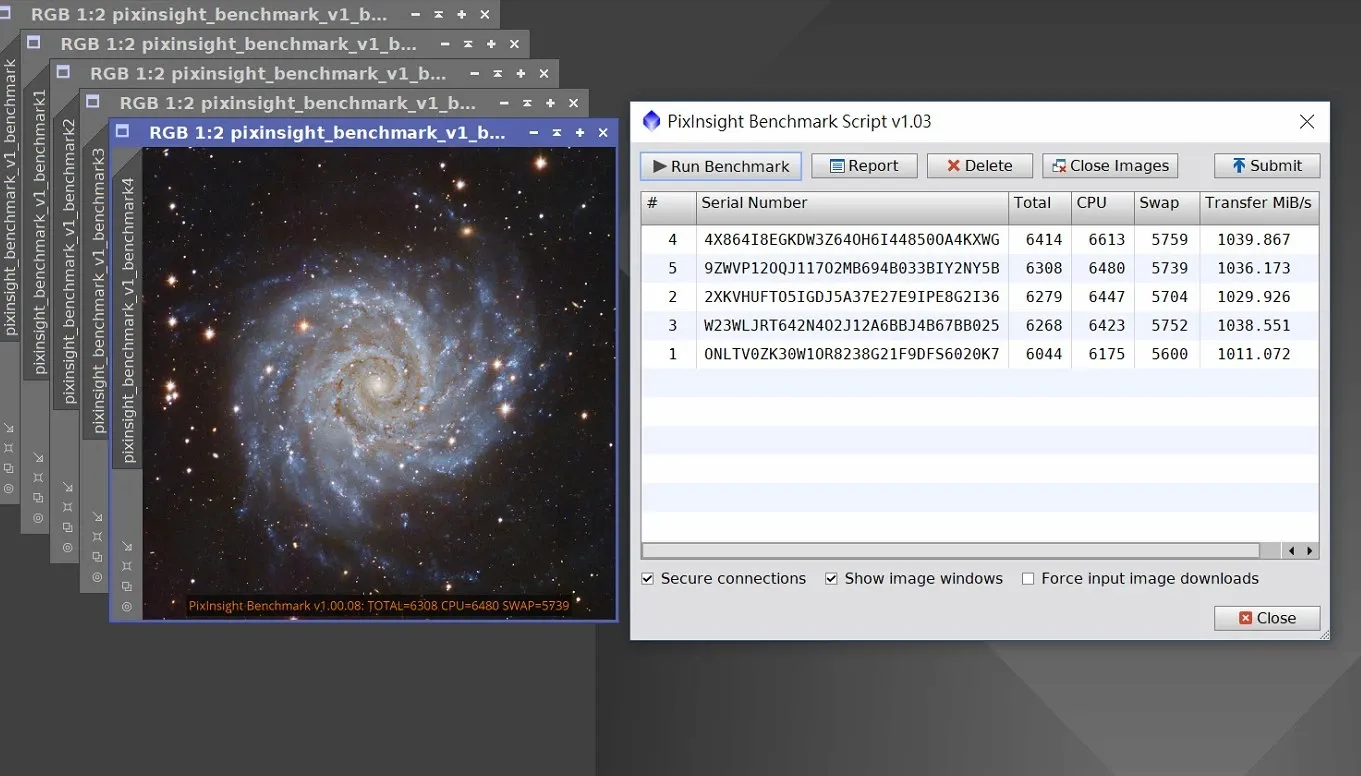
PixInsight officially provides a performance benchmark script that lets you evaluate how well your computer runs PI. When it finishes, it gives you three scores: Total, CPU, and Swap. If you want to run it, remember to update to the latest version of PI first.
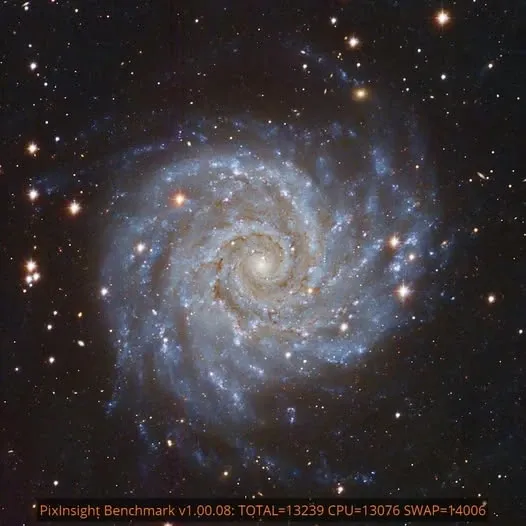
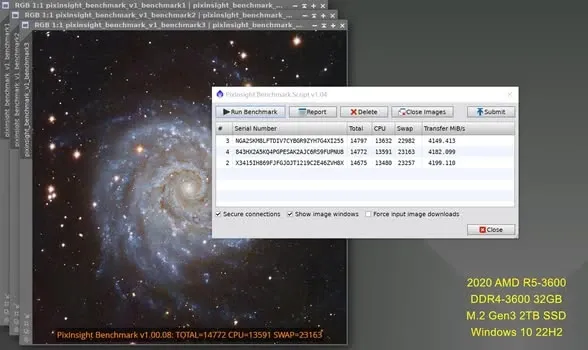
I first tested it on the computer I keep at the office for processing astro images (AMD APU 2400G, DDR4 2666 14GB, M.2 SSD), and the best I got was a Total of only around 6414. After upgrading the processor (AMD R5 4650G), the CPU score literally doubled, shooting up past thirteen thousand, and the whole system drew no more than 120 watts total. I was very happy with that result. This score even tied with my normal-sized desktop at home (R5-3600, 32GB DDR4 3200).
How to Choose Each Component
By 2023, as my cameras switched from CCD to CMOS (IMX571, IMX455, etc.), images went from ten-something megapixels to twenty-four and even sixty megapixels, and my old office-grade specs started to struggle. Just switching between undo and redo took three seconds, which made comparing before-and-after images very unintuitive. On top of that, this was the year AI processes arrived in large numbers and became part of many stages of my workflow. So I reorganized my buying logic:
CPU
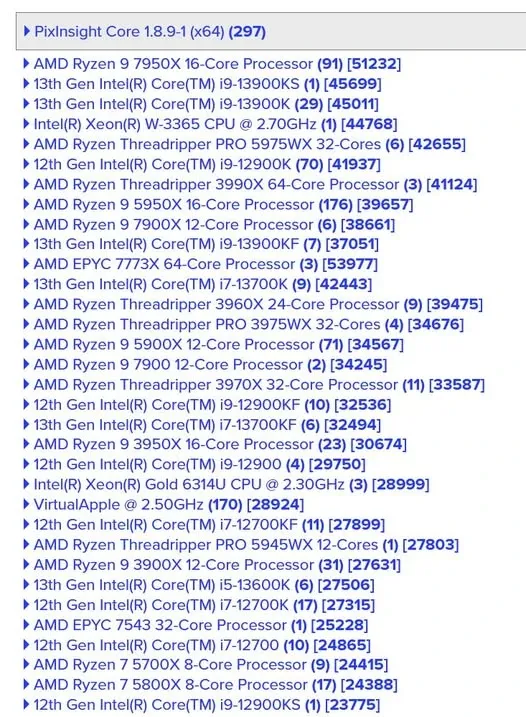
PI wants “many cores, and all of them big cores.” On mainstream PCs, consumer high-end CPUs like the AMD 7950X or Intel i9-13900K perform better. One thing worth pointing out: AMD’s X3D versions offer no benefit for PI, and their actual productivity performance may even be slightly lower than the regular 7950X. Unless you also want to game, just go with the regular version.
Also, someone once ran an R9-7950X on Linux and scored over fifty thousand, flat-out crushing the i9-13900 series (TSMC’s 5nm process really is powerful). Anyone planning to upgrade soon might want to keep an eye on this kind of combination.
Graphics Card (VGA)
If you process comets, or your workflow requires repeated star removal and denoising, on a PC I recommend adding an NVIDIA graphics card so the CUDA cores can help accelerate SXT, NXT, and BXT. At the market prices of the time, the RTX 30 series (such as the RTX 3060 or 3060 Ti) was the top choice. If you don’t game, the RTX 3060 12G version is a good pick: power-efficient, with more VRAM, and it can even double as a Stable Diffusion machine. (There’s a separate dedicated article with detailed benchmarks on GPU acceleration.)
On the Mac side, M1 and later machines enable GPU acceleration automatically.
SSD
At the very least, put the files you’re working on on a SATA SSD; given the current mainstream situation, an M.2 SSD is even better. A PCIe Gen3 SSD is plenty; the benefit Gen4 brings is actually small (it’s only faster when copying files).
By the way, if you run the PI Benchmark with a RAMDISK but only hit 4GB/s, there’s little point. If a RAMDISK can’t reach at least 10GB/s, you may as well just get an affordable PCIe Gen4 SSD instead (7GB/s should be fast enough).
RAM
PI uses memory very efficiently. Unless you’re processing large images from full-frame or bigger sensors, 32GB is already enough. If you’re on DDR4, you can just go straight to 64GB; DDR5 was still on the pricey side at the time, so start with 32GB and add more if you need it.
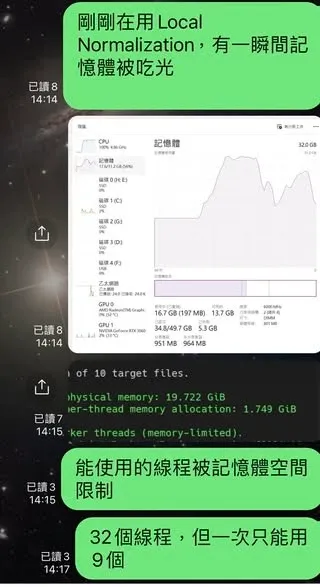
There’s an important concept here: if you don’t have enough memory, even the fastest CPU can’t stretch its legs. Before running a script or process, PI first estimates the available memory; if there isn’t enough room to feed all the threads, it will directly limit the number of usable threads. For example, if each thread needs 1.7GB but only 19GB of memory is free, PI will only allow 9 threads. But your CPU clearly has 32 threads, which means 23 threads are just sitting idle. PI officially recommends about 2GB of memory per thread. Take the AMD 7950X (16 big cores, 32 threads) as an example: you need at least 64GB installed for the software to fully perform.
A Few of My Real-World Test Machines
Over the course of upgrading, I’ve kept a few representative machines on hand:
- Office box AMD R5-2400G → R5-4650G: I first learned PI on the 2400G office box, then upgraded to the 4650G (performance roughly equal to the R5-3600). But because of the small chassis, apart from the CPU, memory, and SSD, there was no room to install an extra graphics card.
- Gaming laptop AMD R7-5800H: 32GB DDR4 3200, M.2 Gen3 SSD, RTX 3060 Laptop 6G, for a total cost under NT$40,000. The fun of manually upgrading the RAM and SSD is priceless, and the graphics card is dedicated to CUDA-accelerated star removal.
- New desktop AMD R9-7950X: DDR5 6000 16G×2, a 360 all-in-one liquid cooler, a B650 motherboard, several M.2 PCIe SSDs, an RTX 3060 12G, and a 750W power supply. When building this one, I concentrated the budget on the components most relevant to image processing (CPU, cooling, graphics card) and squeezed the other peripherals as much as possible.
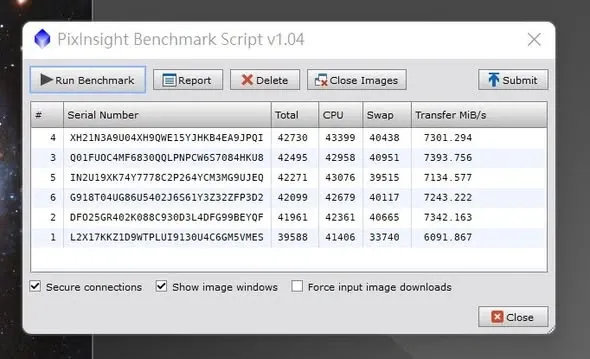
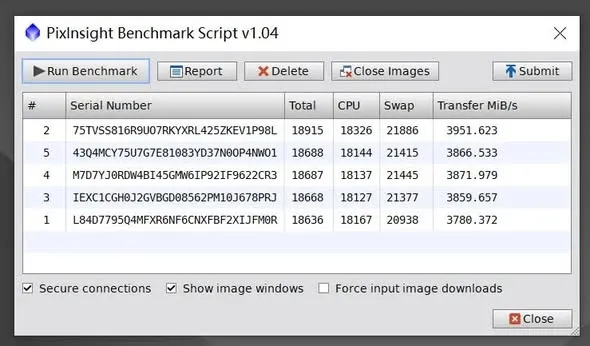
By the end of 2024, after PI updated to the major release 1.9 Lockhart, I ran another round of tests as usual. The average scores of these three machines were: the nearly five-year-old R5-3600 around 14700, the three-year-old R7-5800H around 17000, and the nearly two-year-old R9-7950X around 29800. The 7950X, as my main desktop, is still going strong after two years, and it looks like it can hold out another two years while I wait for AMD’s next-generation CPUs. Of course, if I were building a machine right now, going straight for the top with an R9-9950X would probably keep me covered for another five years.
A Few Easily Overlooked Details
- On Apple ARM: Starting with version 1.9, PI switched its computation engine and is gradually moving toward native Apple ARM support, rather than running through an emulator. Before that (in the 1.8.x era), PI on the M1/M2 ran under emulation, and you have to factor that in when assessing performance.
- The CPU threshold from 1.9 onward: Starting with version 1.9, PixInsight no longer supports older CPUs that lack the AVX2/FMA3 instructions (Intel roughly before Q2 2013, AMD roughly before Q2 2015); these older platforms won’t be able to install the new PI. If you’re still on an old PC, I’d suggest evaluating a machine upgrade before jumping to the major version.
- Intel 13th/14th gen K crashes: Several fellow hobbyists have reported that Intel 13th and 14th gen K-series CPUs crash running PI at default settings. The manufacturer later released a BIOS update that lowers performance by about 10% but keeps the system stable; if you use an i9-13900K, 14900K, or 14700K, it’s worth updating and testing.
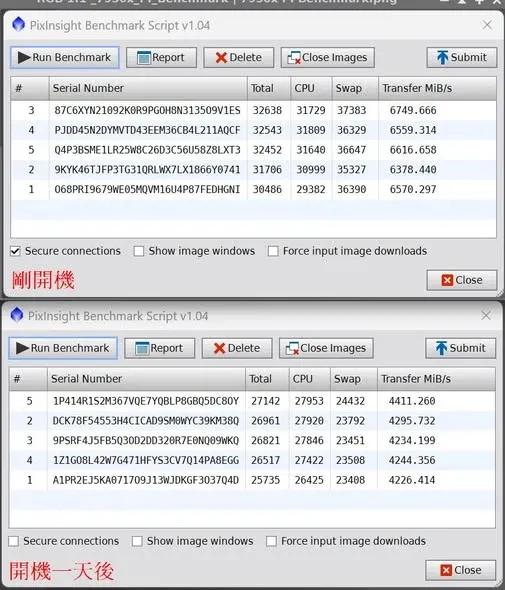
- Boot time affects your score: On Windows, to get the best benchmark score, it’s best to run it right after “shutting down and then powering on” fresh. On my computer, simply restarting doesn’t work; you have to shut down and then power on, otherwise the SSD won’t run garbage collection. After roughly a week of uptime, the SSD’s sequential read speed drops below 3000MB/s. Periodically shutting down and restarting really is necessary.
By the Way: The Computer for Capture Control
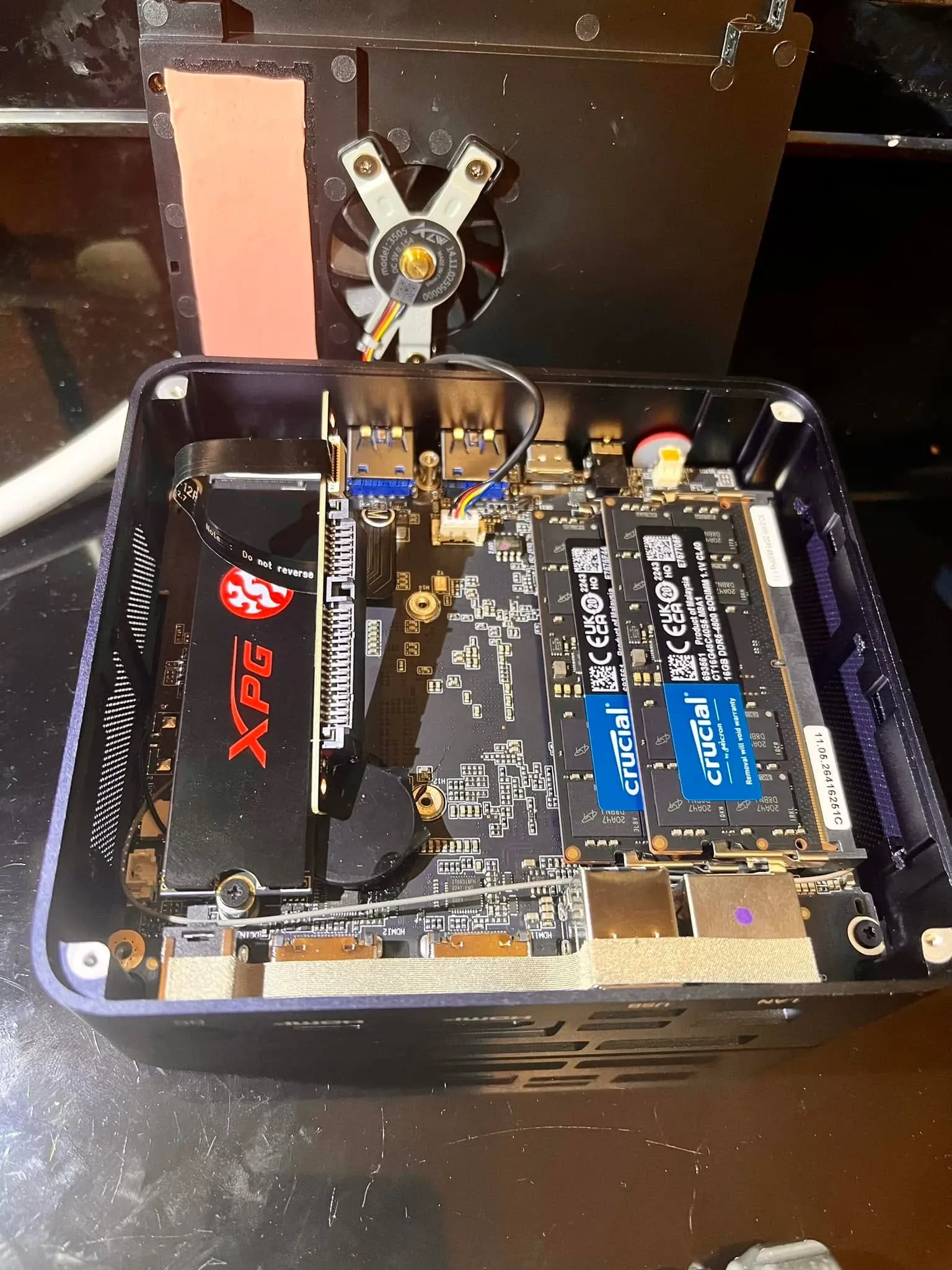
Besides the main post-processing machine, the field also needs a control computer, and the logic for choosing it is completely different. The focus isn’t performance but stability and environmental tolerance. I got hold of two DDR5 laptop memory sticks, paired them with an old M.2 Gen3 SSD, and put together a small computer built around an Intel 1240P core to serve as the control machine during astro imaging (controlling one mount, two scopes, and two cameras at once) and for live stacking. It has no battery, so it’s not afraid of the cold up in the mountains; but it’s a fan-cooled system, so it can’t be mounted directly on the scope.
Summary
For building a computer to run PI, the rough order of priority is: a CPU with many big cores, enough memory to match the thread count, a decent M.2 SSD, and then an NVIDIA graphics card depending on your workflow. Hardware specs keep changing with the times, but the principle of “putting your budget into the parts most relevant to image processing” doesn’t really go out of date.