Enabling Multithreaded Acceleration in PixInsight 1.9.3
One of the major updates in PixInsight 1.9.3 solves a long-criticized problem: the inability to effectively use multithreading to improve performance. This article explains the significance of this improvement and how to configure it after installing the new version so you can actually enable it.
The Old Pain Point
Regular PixInsight users have probably all felt it: apart from WBPP, most processes or scripts have always been able to use only very few cores to get their work done. Even if you have a high-end consumer CPU like a 16-core, 32-thread one, or even a workstation CPU with more cores, execution mostly only takes up one or two cores. The result is that improvements in single-core performance help PixInsight significantly, but increases in core count make almost no noticeable difference for most ordinary tasks.
The Improvement in 1.9.3
This update rewrote many of those processes, increasing the efficiency of multi-core CPUs when running processes or scripts. Note, however, that after installing version 1.9.3 you still need to go through a setup step to enable this acceleration.
Enabling Steps
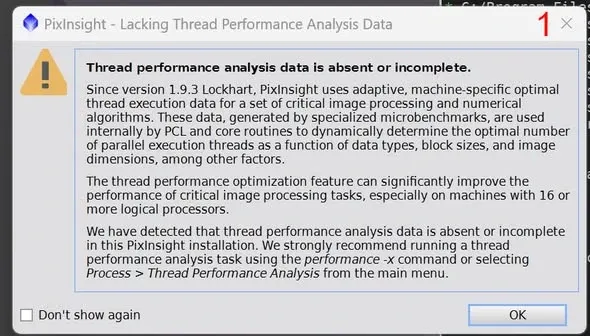
- When you open PixInsight, a warning message pops up telling you that a thread performance analysis needs to be run.
- Close the message and enter the command
performance -xin the console. - The software will start the benchmark computation, occupying the CPU while it runs.
- After roughly a few minutes (on an AMD 7950X, for example, it ran for about 10 minutes) it shows the task complete. At this point PixInsight can correctly assess and invoke multithreading to help accelerate the execution of processes and scripts.
This step only needs to be run once.
Measured Results
In my testing, processes that used to take 10 to 15 seconds now almost all finish in one second. For a workflow that requires repeatedly trying out parameters, this kind of speedup is quite noticeable, and I strongly recommend that every user who upgrades to 1.9.3 do this setup once.