WBPP Troubleshooting: Common Errors and Known Bugs
This article is compiled from notes taken between 2022 and 2025; some tools or workflows have since been updated, so please keep that in mind while reading. The error messages and version-specific behaviors described here are all recorded as they were at the time. For WBPP’s interface, master calibration frames, and the normal execution flow, please refer to the companion article “The Complete Guide to WBPP”.
Running WBPP end to end with a single click is certainly satisfying, but when you actually use it you always run into situations where it stalls, throws errors, or produces results that just don’t look right. This article organizes the categories of WBPP problems I’ve run into over these past few years—the ones I’m most often asked about—into a troubleshooting handbook, from diagnostic mindset all the way to a few specific known bugs.
Troubleshooting Step One: Check the Process Console First
When something goes wrong with PixInsight processing, the first thing you should always think of is to check the Process Console. It tells you where the error occurred and what kind of error it was; it’s the starting point for all diagnosis.
That said, WBPP is a script, and while the script isn’t running the console gets collapsed and can’t be selected. So to see the console, you often have to close WBPP first. This sounds like a hassle, but it’s the only source of clues for many problems—the solutions to several of the bugs below all started from that one line of red text in the console.
Failures and Bugs in the Calibration Stage
Calibration failed—close PI and reopen it first. If, when you run WBPP, the initial calibration (using the master calibration frames) fails right away and the status shows a red “failed”, you can pause the whole workflow, close PI, reopen WBPP, and run it again; this calibration-failed error usually then disappears. When processing OSC images I’ve run into this bug at least four times, and every time I’ve solved it with this trick.
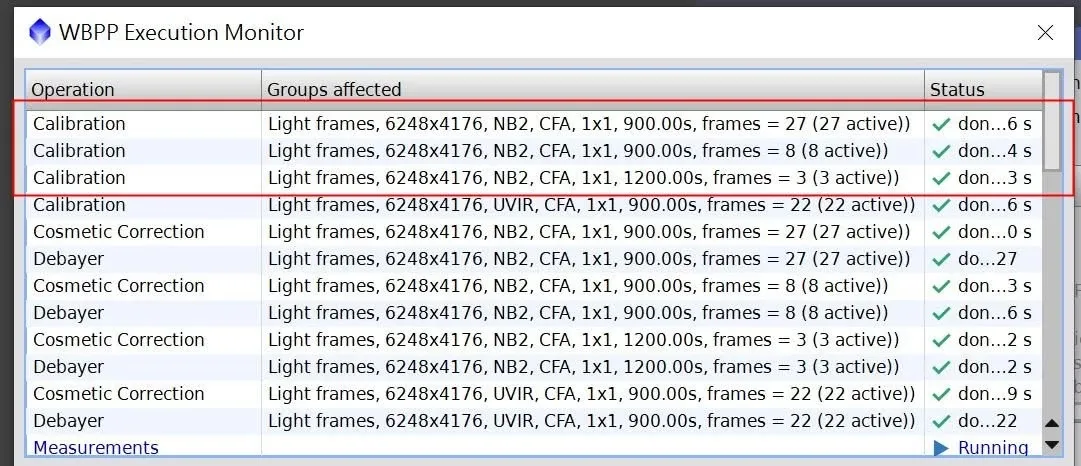
Flats keep failing calibration—go back to manual, step-by-step processing. Some versions of WBPP have a bug that keeps causing flat calibration to fail. In cases like this, knowing how to process things manually, step by step, becomes important. While we’re at it, let’s review the Pre-Process steps:
- Calibration:
light − dark / ((flat − flat dark) * med(flat)) - Cosmetic Correction
- Debayer: interpolate over the Bayer matrix
- Star Alignment
- NSG
- Integration
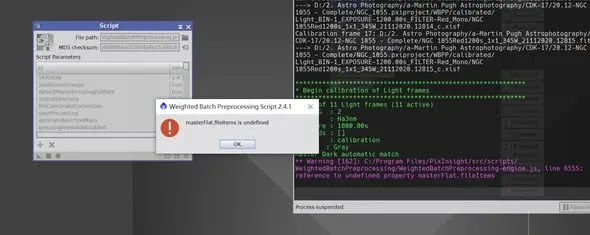
When automation can’t be trusted, breaking the workflow apart and running it manually actually makes it easier to pinpoint which step the problem is in.
Path Problems: Two Possible Causes of a File I/O Error
When using WBPP on Windows, if the calibration stage throws a File I/O Error, it’s usually one of these two causes:
- The file path plus filename is too long and exceeds the system limit, so it needs to be shortened.
- The target folder can’t be written to, for example if you set the output to a system folder.
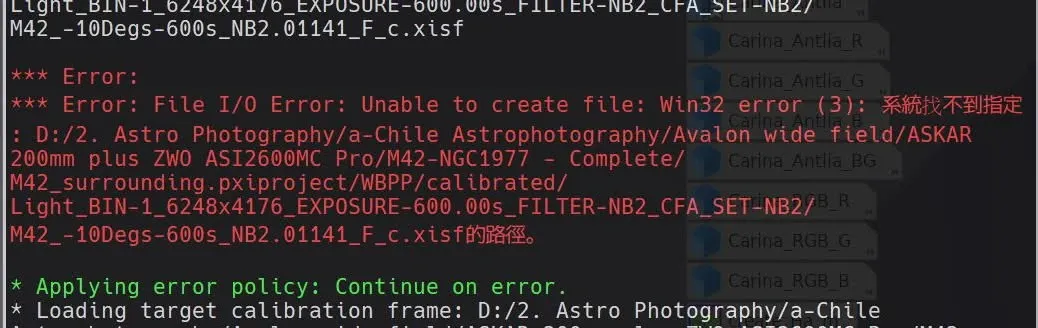
The first is the most common. To cure “path too long” for good, you can enable long-path support in Windows (set LongPathsEnabled to 1 in regedit); it’s also a good idea to avoid Chinese-character paths. The detailed steps for these two environment prerequisites are written up in the Windows environment setup section of “The Complete Guide to WBPP”, so I won’t repeat them here.
The RA/DEC Coordinate “60 Seconds Not Carried Over” Bug
This is the trickiest problem, and the one most worth pulling out for its own discussion, because its symptoms are wildly varied but the root cause is the same: in the FITS Header, the right ascension / declination coordinates have a seconds value of “60” that was never carried over.
I’ve run into it twice, each time presenting differently.
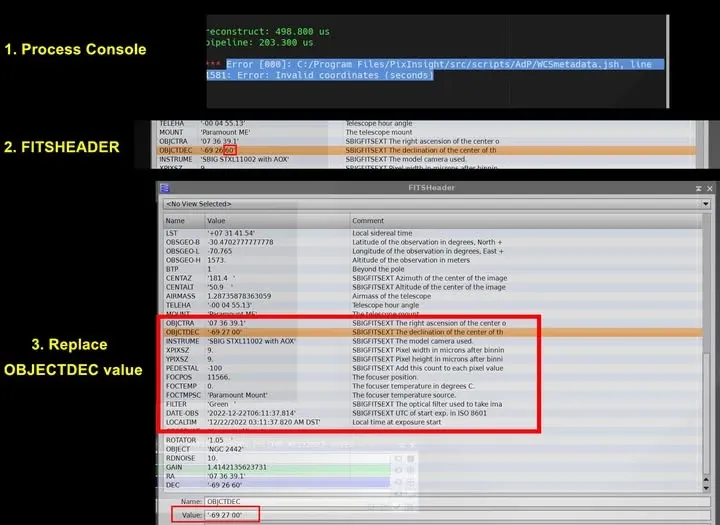
First time: WBPP couldn’t load the file. I closed WBPP and looked at the Process Console, and found that some line of a js script reported “invalid coordinates”. At the time I assumed it was a WBPP bug, took the error message and searched for it online, and only then found several identical error reports on the PixInsight Forum—it turned out the coordinate problem was preventing the image from loading into WBPP. With a direction to go on, I still spent an hour digging through several hundred light frames before I tracked down the problematic image: its OBJCTDEC coordinate was wrong. I opened the FITSHeader process in PI, scrolled to OBJCTDEC, and changed the value that “should have carried over but didn’t”—in this example, changing -69 26 60 to -69 27 0—and this frame then loaded fine, and the files after it were no longer held up by it.
Second time: files couldn’t be added, and the console reported too much recursion. Later I ran into it again: when adding files to WBPP the software froze, and in the end no files were added at all. I closed WBPP and looked at the Console, and it was a red InternalError: too much recursion. After reopening WBPP I found some files had loaded and some hadn’t; checking the ones that didn’t, sure enough it was another FITS Header anomaly—this time DEC showed -46 01 60, where the seconds “60” should have carried over to -46 02 00. As soon as WBPP reads a bad value like this it freezes, and it also drags down all subsequent images so they can’t load either. Again, I opened the FITS Header and manually carried the seconds over, and after fixing it I re-added the files and it worked. When all files load successfully, WBPP automatically pops up a diagnostic message, for example “60 of 60 light frames were added”.
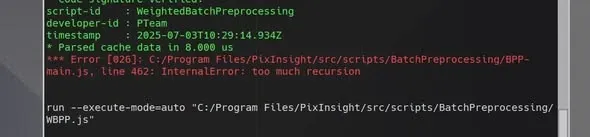
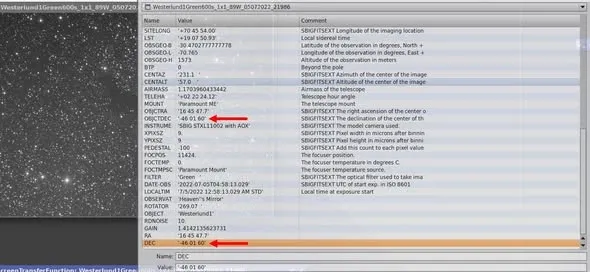
A shared conclusion: this problem of coordinates not carrying over automatically has, in almost every case I’ve seen so far, occurred when MDL (remote control) was the capture software, though I can’t rule out other capture software having the same flaw. So, whenever WBPP freezes and files won’t add, first check the Process Console to confirm the error type, then check whether the RA/DEC Header has the “60 seconds not carried over” bug; after a manual fix it’s usually resolved.
Performance: Why the Full Package Takes So Long
Finally, let’s talk about a problem that strictly speaking isn’t an “error” but is nonetheless torturous—the WBPP full package is simply too slow. I once let the full package run for a solid four hours for five images I wanted to make into an HDR (the machine at the time was an AMD R5-4650G, DDR4 3200 32GB, Gen4 SSD, with 24-megapixel images; that kind of wait really makes you want to buy a new computer).
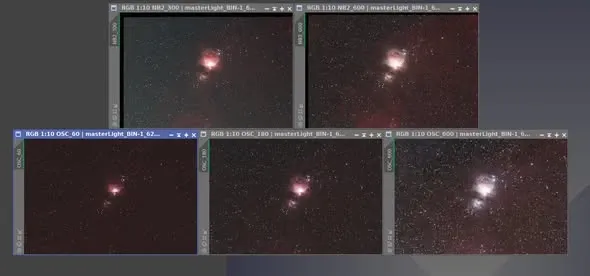
Two parts in particular eat up time:
- Separated RGB: processing the RGB channels of a color photo separately to eliminate chromatic aberration.
- Local Normalization: picking the best few images as references and running Local Normalization on the others.
If you disable these two, WBPP gets a lot faster. Whether it’s worth sacrificing these two for speed depends on your standards for the finished result—for hands-on measurements of “which steps to turn off, how much time you save, and how much quality you lose”, I have a set of data in “The Complete Guide to WBPP” showing a 7–8x speedup you can refer to.
To sum up the mindset of this troubleshooting handbook: when something goes wrong, check the Process Console first; if calibration fails, close PI and reopen; if flats keep failing calibration, go back to manual step-by-step processing; a File I/O Error is usually a path that’s too long or a folder that can’t be written to; and if things won’t load, freeze, or report recursion, go check whether the RA/DEC in the FITS Header has a seconds value of 60 that wasn’t carried over. Master these few tricks and you can handle most of WBPP’s temper.