300 GB of Imaging Data Gone Overnight: A Lesson in Accidental SSD Deletion and Automatic Backup
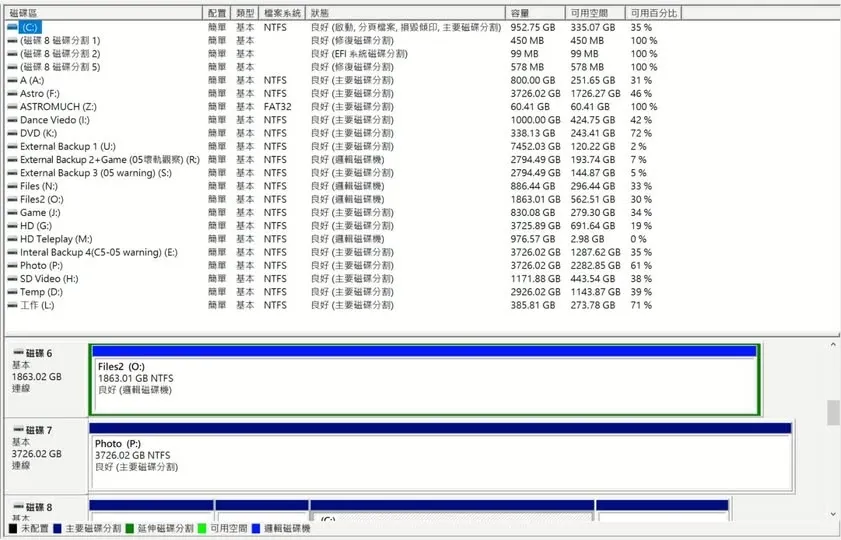
This SSD partition-deletion incident wiped out more than 600 GB of data in total. Of that, more than 300 GB was successfully recovered thanks to a backup from six months earlier; but the remaining 300-odd GB was imaging data, whose only other copy lived on my laptop’s SSD—and that copy had already been deleted too.
Data on an SSD Is Almost Impossible to Recover Once Deleted
I had never recovered data from an SSD before. This time, in an effort to salvage it, I spent money trying several software packages, testing on two different SSDs. The result: the files were indeed visible, but 95% of what I recovered was corrupted.
So the conclusion is brutal—as long as a file sits on an SSD, once a failure occurs, a partition is accidentally deleted, or it’s emptied from the Recycle Bin, you should basically treat it as “permanently gone, unrecoverable.” This differs somewhat from a traditional mechanical hard drive, and it’s mainly related to the SSD’s TRIM mechanism; EaseUS has an article on its website specifically explaining “why SSD files can’t be recovered,” which anyone interested can look up.
Data Preservation: the Only Solution Is “Automatic Backup”
This incident reaffirmed a concept for me: no matter where data is stored, there will come a day when it fails.
A disk array will fail too—based on four drives, RAID 5 tolerates only one failed drive and RAID 6 tolerates two; go beyond that and there’s no saving it. So the only way to truly preserve data is “automatic backup.” The money spent on hard drives may seem like a lot at first glance, but compared with the money and time spent on data recovery after the fact, it’s actually far less.
It’s a bit embarrassing to admit, but I have more than forty hard drives under my management: thirty-something across several computers, six in a NAS, and four in an NVR, of which roughly half the capacity is devoted to automatic backup. But clearly, even the most meticulous backup is still no match for human operating error—and this accident happened to occur on the one computer that had no automatic backup configured.
Two Practical Suggestions
- Don’t rely too heavily on Windows’ built-in Disk Management (the very tool shown in the image). I recommend switching to commercial software to manage your disks, which can reduce the risk of immediate data loss from a misoperation.
- Treat “automatic backup” as standard equipment, not an optional extra. Especially for imaging data that can’t be redone, be sure to keep a second—or even a third—automatic backup.
Imaging data is wrung out one night at a time, in the cold wind; once it’s gone, it’s gone. I hope this is a lesson no one has to experience firsthand in order to remember.