Getting to Know the Generalized Hyperbolic Stretch (GHS)
The Generalized Hyperbolic Stretch (GHS)—a stretch process that appears in PixInsight in script form—has been out for a while now, and I’ve been using it for some time too. This article rounds up what I’ve taken away from actually using it, along with what I consider the more suitable ways to use it.
My Takeaway: Best as a Fine-Tuning Tool
Honestly, across several attempts I kept feeling that using GHS purely to do the stretch from scratch didn’t give better results, and it often took a lot of time going back and forth to adjust it several times. What worked far better was changing the order: first do the initial stretch with another method, then use GHS for fine-tuning, and the result comes out more ideal.
This way of using it is especially well suited to targeting the areas you personally want to enhance. You can use the Log view to inspect the histogram, pinpoint the spot you want to enhance further, and then use GHS to precisely work that range.
What GHS Can Do
From a fine-tuning perspective, the results GHS gives feel similar to controlling an image with Highlight and Shadow in Photoshop.
In addition, GHS also offers different blend modes, so you can enhance and blend luminance or color separately. This brings a practical benefit: with a positive-curve stretch you usually tend to wash out the colors, but through GHS’s blend modes you can avoid this over-washing of color, and even get an additional color-stretch effect similar to Arcsinh Stretch.
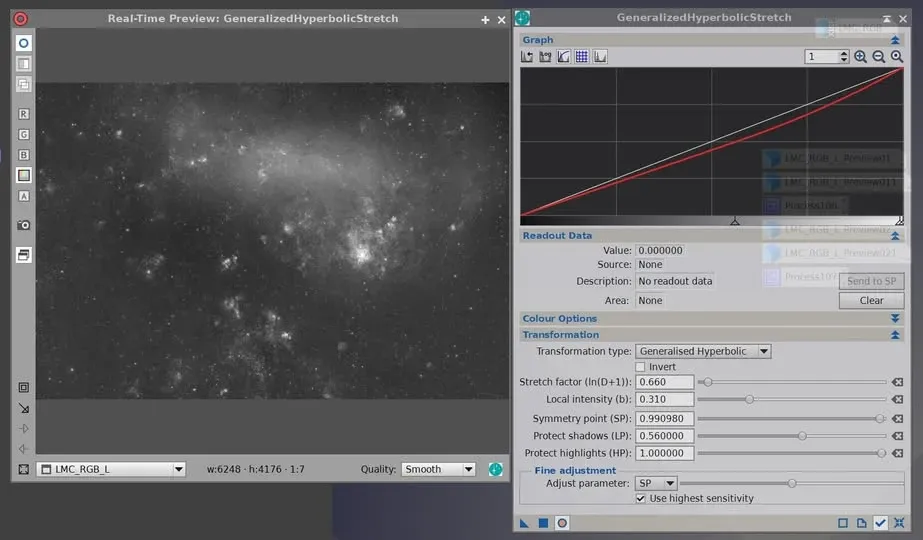
In summary, I don’t treat GHS as my sole primary stretch tool; instead, I place it in the later part of the workflow as the “fine polish after the first stretch,” which is where it delivers the most value.