Preserving Your PixInsight Processing History with Projects and XISF
PixInsight has one trait that is especially friendly to beginners: it keeps a complete record of which processes, with which parameters, have been applied to each image. As long as you know how to preserve this history, you can not only return to any step at any time, but also turn “the workflow that worked last time” into your own personal template. This article covers History Explorer, saving as a Project, and the built-in history that XISF carries.
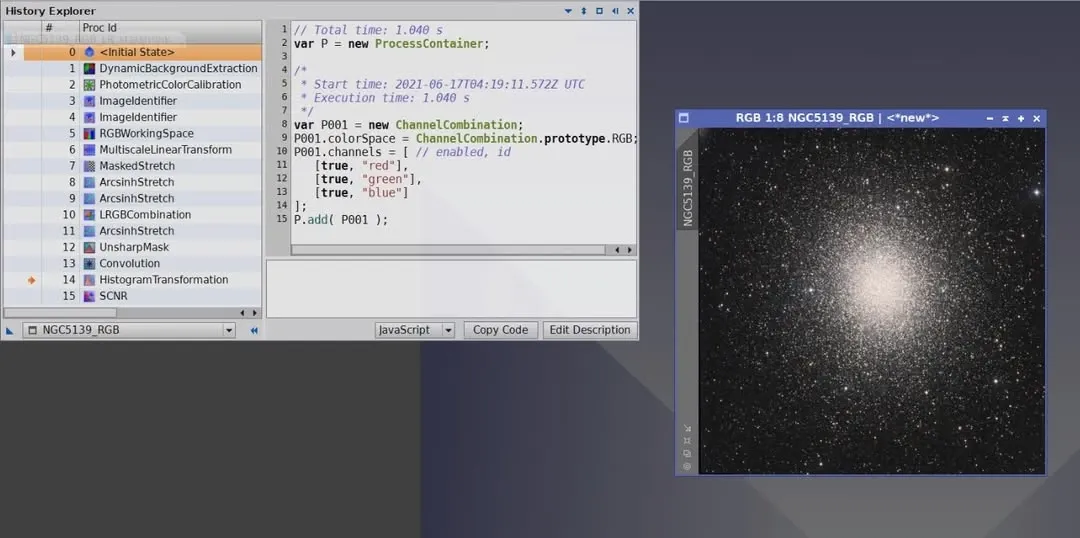
History Explorer: Keeping Every Step in Full
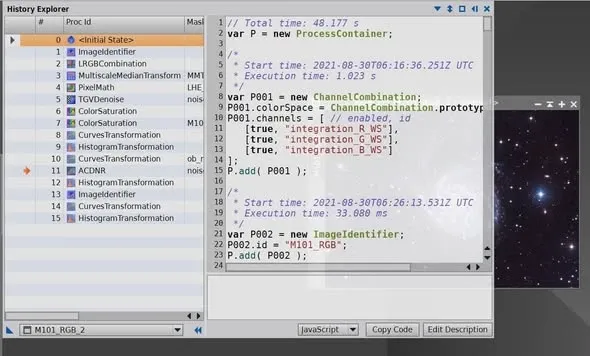
If you save your post-processing as an entire Project file, then for every image in the Project, the history of which processes or scripts it went through is all preserved “automatically.”
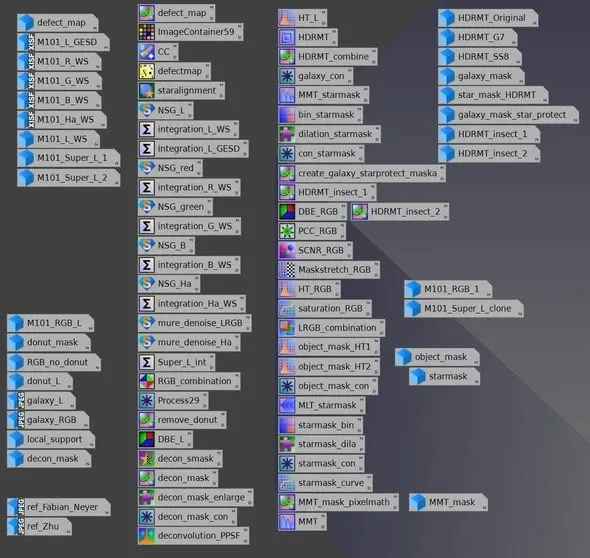
And these records are not just for returning an image to any earlier step—nor are they merely a log. If you drag a given step from the History Explorer directly onto the workspace desktop, it generates a process icon that retains the complete parameter settings from that moment.
For a beginner who has already run through the PI workflow once, this is extremely useful: you can drag out your processing records from last time and piece together your own workflow step by step, instead of having to recall every parameter from scratch each time.
Why I Always Save My Data as a Project
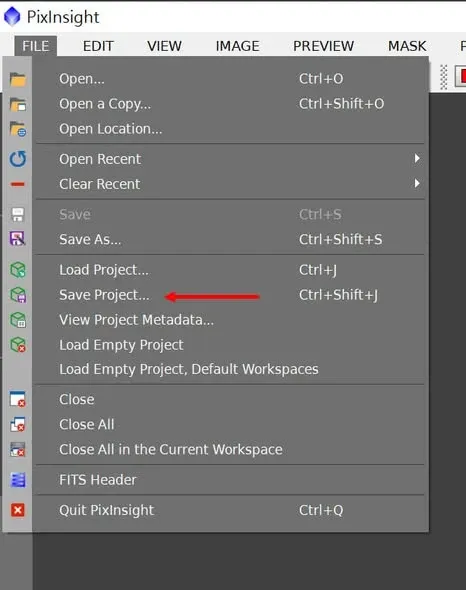
The habit I have formed is to always save my data as a Project in PixInsight. There are three reasons:
- It preserves all of the processing history of each image;
- It preserves every parameter-bearing process icon on the workspace desktop;
- It preserves all of the images across every workspace.
In other words, a single Project file is a complete save that “packs up your line of thinking along with it,” making it very convenient to review or modify later.
XISF: A Single Image Can Carry Its Own History Too
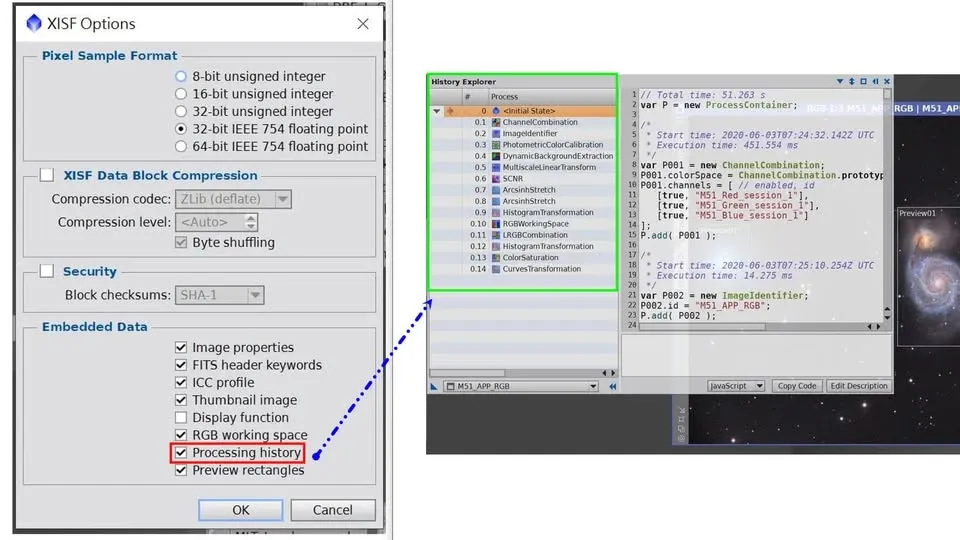
If saving an entire Project every time feels too heavy, there is actually a lighter option. Since PixInsight was updated to 1.8.8-10, when you save a single image in PI’s proprietary XISF format, you can choose to store the editing processes (with parameters) into the file as well, preserving the editing history without saving the whole Project. In addition, the preview selection boxes on this image can be preserved along with it.
The benefit is direct: from the file’s editing history alone, you can tell how this image was processed in the first place—whether for reviewing it yourself later, or wanting to explain the workflow to someone else, it saves a lot of trouble.
Summary
Whether you save as a Project or as a history-carrying XISF, the core idea is one and the same: don’t let your workflow vanish when the file closes. Preserving the history makes it both a traceable insurance policy and a reusable personal template—especially worth building into a habit for beginners who are still establishing their own workflow.