How to Batch-Remove Stars: Using ImageContainer
When processing comets, or when you need to remove stars from a whole batch of images one by one, handling them by hand one at a time is exhausting. This article explains how to do batch star removal in PixInsight by pairing ImageContainer with StarNet.
First, the premise: here I use StarNet as the example, because StarXTerminator (SXT) has a built-in batch feature, so if you’re using SXT you don’t need this ImageContainer approach.
Steps
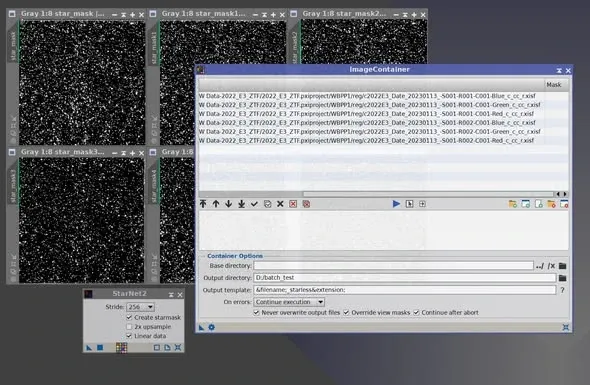
- Bring up ImageContainer: right-click in the PixInsight workspace, bring up ImageContainer, and load all the images you want to remove stars from.
- Set the output path: set a file output path for ImageContainer; the star-removed images will be saved here.
- Configure StarNet: open StarNet and check the options you need, for example “Linear data” or “Create star mask.”
- Drag to run: drag the triangle at the bottom-right of ImageContainer onto the lower part of the StarNet process window, and it will start running through the images one by one automatically.
Two Things to Watch Out For
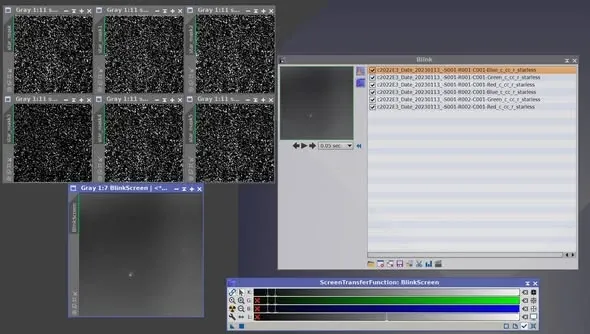
First, the star files take up memory. The file output path will contain only the “star-removed images”; but if you’ve checked “generate stars separately,” those star images open directly in the workspace. When too many images are loaded at once, this can cause an out-of-memory condition, and the star files that come later simply fail to open and vanish.
The fix: load only a suitable number of files at a time, keep the memory from blowing up, and run in batches; or just add more physical RAM.
Second, the star files have to be saved manually. Those star files open in the workspace must be saved one by one by hand. This step is a bit tedious, so don’t forget to save.
Wrap-Up
The core of batch star removal is using ImageContainer to feed multiple images to StarNet for automatic processing. As long as you gauge “how many to load at once” to avoid blowing up memory, and remember to manually save the separately generated stars, you can save a great deal of time otherwise spent processing one by one. If you’re using SXT, its built-in batch feature is even more convenient.