Using Process Explorer to Manage Your Go-To Processes
We always want to keep our frequently used processes or scripts somewhere we can reach in a click. The most common approach is to put their icons on the workspace desktop—but that not only takes up workspace, it also means you have to save your entire session as a Project for those icons you want on hand to stay on the desktop. Is there a way to have them always available without eating up the desktop? There is, and the answer is the Process Explorer on the left side of PixInsight.
Process Explorer’s Three Categories
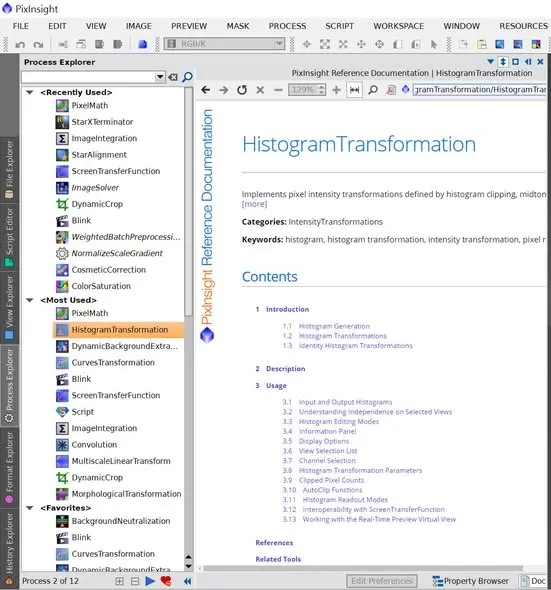
After you’ve used PixInsight for a while, it automatically organizes the processes or scripts you use often into the collapsible Process Explorer panel on the left side of the screen, categorized three ways:
- Recently Used
- Most Used
- Favorites
The third one, Favorites, is the one you can customize—you can put whatever processes or scripts you want into it for easy access anytime, without having to use any desktop space at all.
Tucking the Panel to the Side With Auto-Hide
On top of that, this collapsible Process Explorer panel can be moved around. You can put it on the right, as in the image below, and set it to auto-hide—so it only pops out when the mouse passes over it.
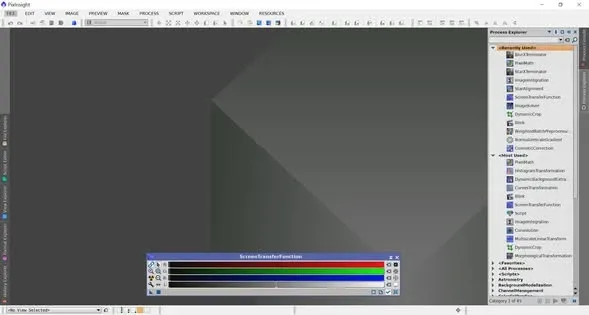
Personally I find this really convenient: it doesn’t take up desktop space, and access is quick. Especially since I use a 2K monitor and, because of my presbyopia, have set PixInsight’s interface font larger, desktop space was already a bit tight to begin with, so this approach helps me a lot. If you have the same struggle, find some time to give it a try.