What the Six Buttons at the Bottom-Left of a PixInsight Process Window Mean
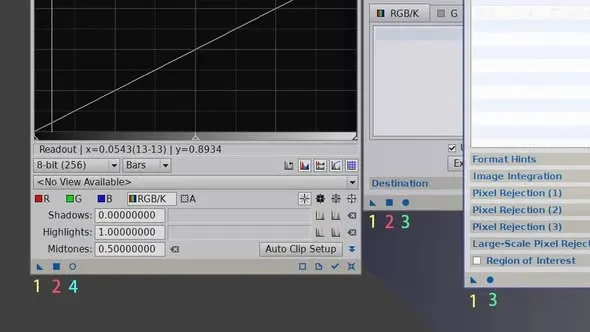
At the bottom-left of every process window in PixInsight sits a familiar row of six little icons. These buttons look basic, but they’re the foundation of operating PixInsight, and beginners often can’t quite tell what each of them does at first. This article lays them all out once and for all.
What Each of the Six Buttons Means
1. Triangle (New Instance)
This is the most flexible and the most important one, and you can drag it to different places for different effects:
- Drag it to the desktop: it becomes an icon (a process instance icon) that preserves the current parameter settings, handy for reusing later.
- Drag it onto an already-open image: it runs the process (or script) on that image with the current parameter settings.
- Drag it onto another compatible process: it applies this process’s parameters to the other process.
2. Square (Apply)
Runs the process (or script) on the currently open image with the current parameter settings.
3. Solid Circle (Apply Global / Execute)
Runs the process (or script) with the set parameters on image files that “haven’t been opened yet.”
4. Hollow Circle (Real-Time Preview)
Provides a real-time preview window that lets you see the effect of the parameters live (for reference only—it isn’t actually applied).
5. Check (V)
For dynamic processes only—accepts the dynamic process’s settings and applies them.
6. Cross (X)
For dynamic processes only—rejects the dynamic process’s settings and closes the process.
Wrap-Up
Getting these six buttons straight is like grasping the skeleton of operating PixInsight—especially the triangle (New Instance), whose “drag” philosophy runs through the entire logic of using the software, and which is worth spending a little extra time getting familiar with.