PCC/SPCC and Plate Solving Troubleshooting
PCC (Photometric Color Calibration) and the later SPCC are both powerful automatic color-calibration tools, but they’re both built on one premise—plate solving must succeed. In practice, plate solving failures and color-calibration errors are not uncommon. This article organizes a few common plate-solving and PCC troubleshooting cases.
A Key Premise: PCC/SPCC No Longer Plate-Solves on Its Own
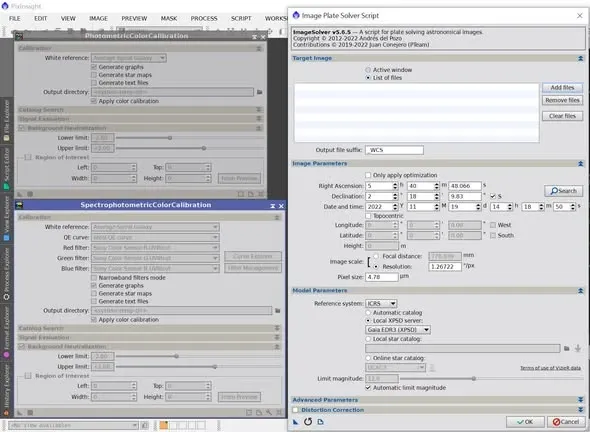
First, a key point that’s easy to trip over: neither PCC nor SPCC has the Plate Solve function anymore.
Therefore, before running PCC or SPCC, if the image hasn’t had an Astrometric solution done in WBPP, you must first complete plate solving with the Image Plate Solver Script in the scripts menu, or PCC or SPCC will throw an error and refuse to run. Miss this step and everything afterward stalls.
Common Options That Cause PCC to Fail
When PCC fails at plate solving or color calibration, you can check the following options one by one:
- Automatically limit magnitude: if PCC fails at plate solving, you can turn off this option and instead manually select an appropriate magnitude range.
- Distortion correction: if you’re using a wide-angle lens, it’s a good idea to check this.
- Ignore data in the FIT header: if the image has been Resampled, or was shot with a DSLR, so that the focal length, pixel size, and RA/DEC position in the FIT header may not match reality, check this to make PCC use the correct parameters you enter manually.
- Automatically select photometry catalog directory: if the photometry star catalog has gaps (which often happens in sky regions near the poles), the error message is usually “no stars in the image”. In that case, turn off automatic directory selection and manually switch to another directory to solve it.
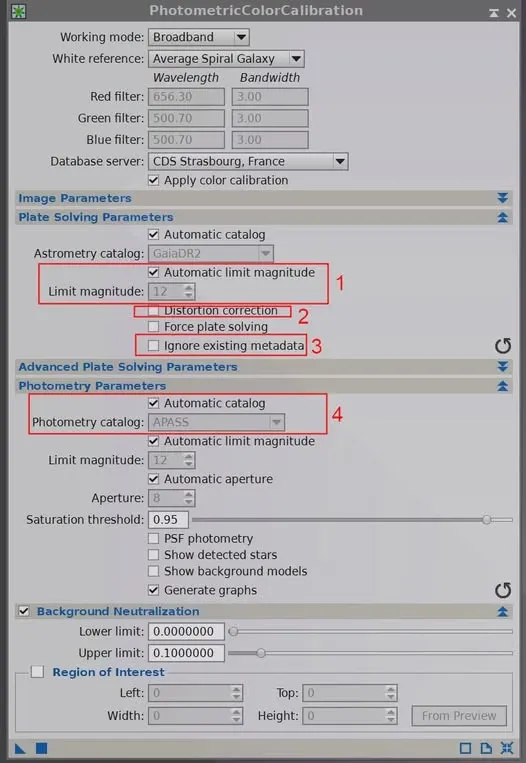
Plate Solving Problems After Resample
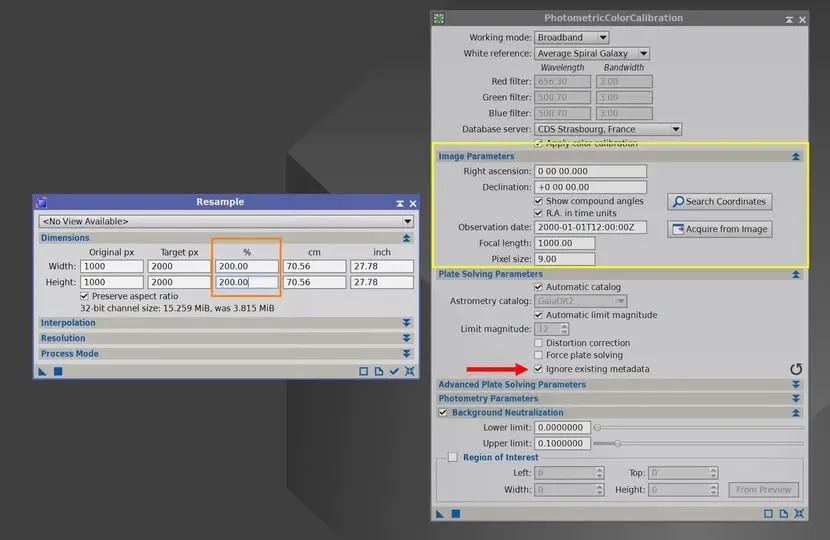
An extension of point 3. If your image went through a Resample before PCC, and as a result PCC takes a huge amount of time to complete or even fails, remember to check the “ignore existing metadata” option in PCC, so the process directly uses the Image Parameters you entered; only then can plate solving proceed smoothly.
Scenarios where you’d use Resample include: binning pixels on a mono camera, or choosing super pixel during debayering on a color camera.
Star Catalog Gaps: Just Switch to Another Directory
Sometimes a plate-solving failure isn’t a problem with your settings, but a gap in the star catalog itself.
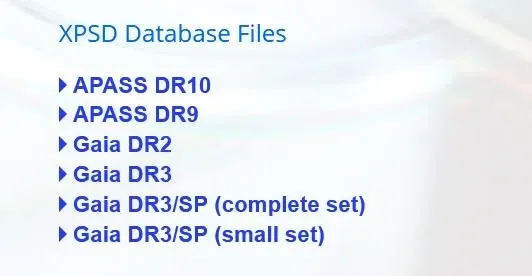
For example, APASS DR10 has severe gaps in the northern sky; using DR10 alone (or Auto) causes PCC’s Photometry to fail and automatic color calibration to be impossible on quite a few well-known northern objects such as M101 and M51. Switching to DR9 usually solves the problem. Centering on M101 and viewing the star catalog at different pixel scales makes this kind of gap clearly visible.
The Evolution of the Databases: From Local Plate Solving to Gaia
The star-catalog databases that plate solving relies on have kept evolving over the years.
In the early days, after updating PI you could download the GaiaDR2 database as a local reference for plate solving, so the analysis no longer needed to fetch catalog data online. At the time there was still one small regret, though—the image’s celestial coordinates still had to be searched for over the network or filled in yourself, and couldn’t be searched locally, so fully offline plate solving wasn’t quite achieved.
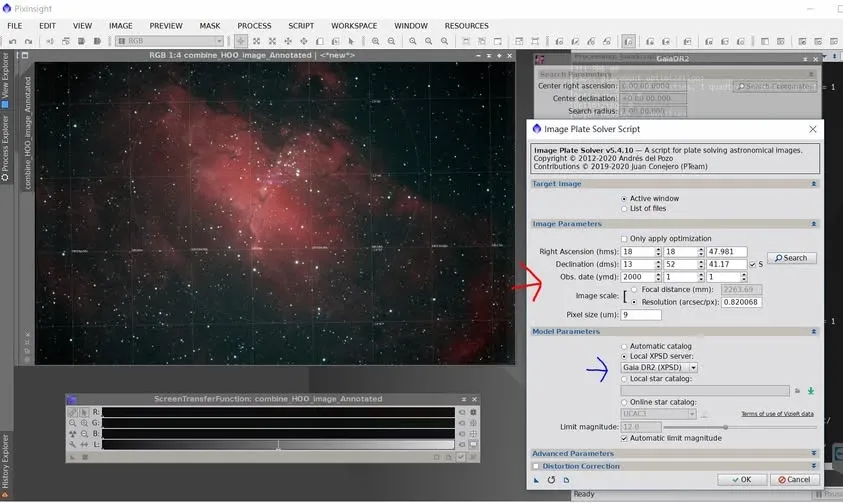
Later, PixInsight released a new-generation color-calibration process based on Gaia DR3. For those who want to try it early, remember to first go to the PixInsight Distribution and download the Gaia DR3/SP data (either the complete or small set will do), set it up in PI’s Gaia process, and then use it once the new feature is released and updated.
Summary
PCC and SPCC make automatic color calibration very convenient, but their success or failure rests almost entirely on the plate-solving step. Remember three things: plate-solve before color-calibrating, when it fails, check those few options one by one, and when the star catalog has gaps, switch to another directory or version. Take care of the plate-solving gate, and automatic color calibration can reliably show its power.