Photoshop's Compatibility Problems With 32-Bit Images
Before bringing an image from PixInsight or another astronomy program into Photoshop, there’s one compatibility trap worth sorting out first: Photoshop handles 32-bit images differently from what we’re used to in astro image processing.
The Problem: Photoshop Applies a Gamma to 32-Bit Images
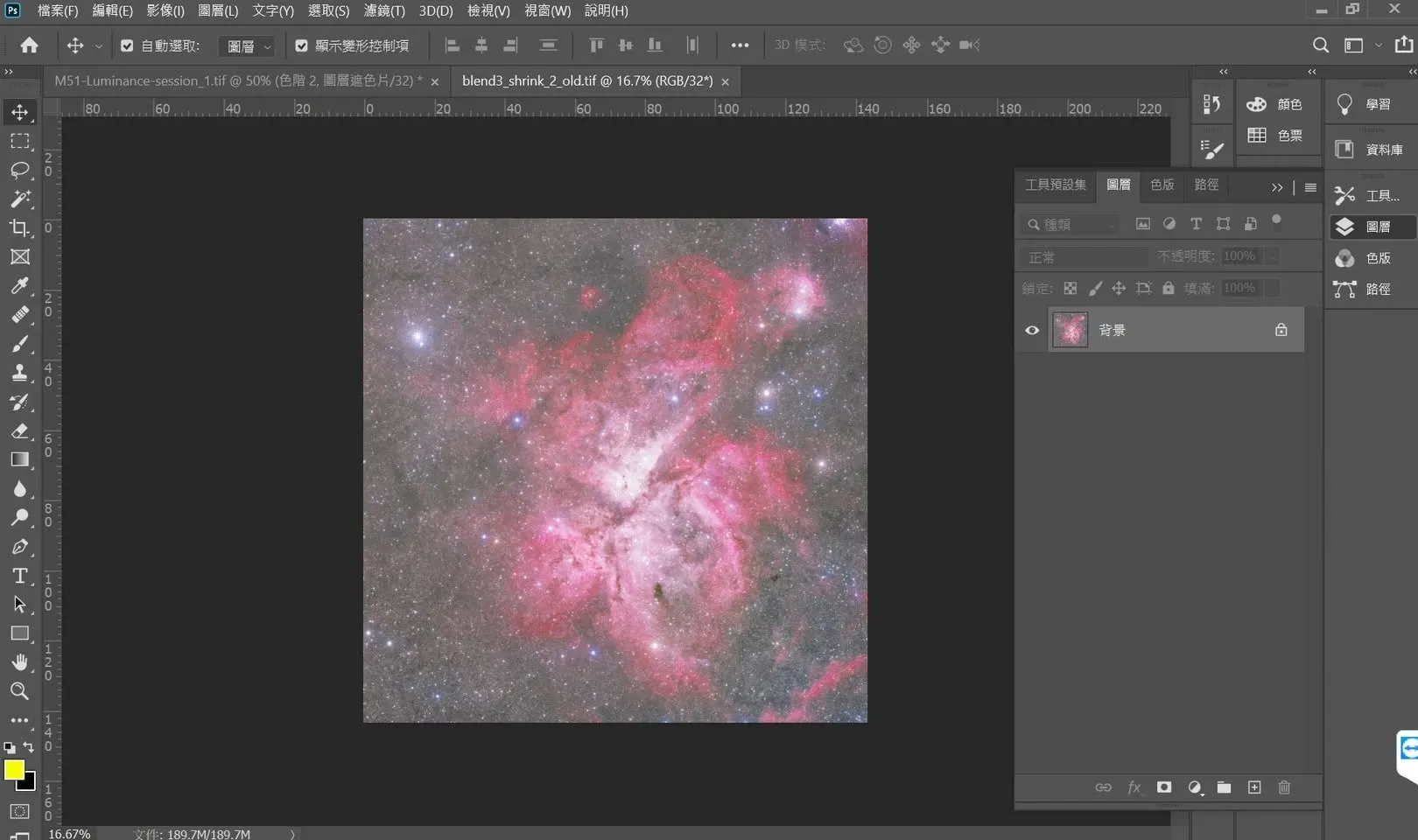
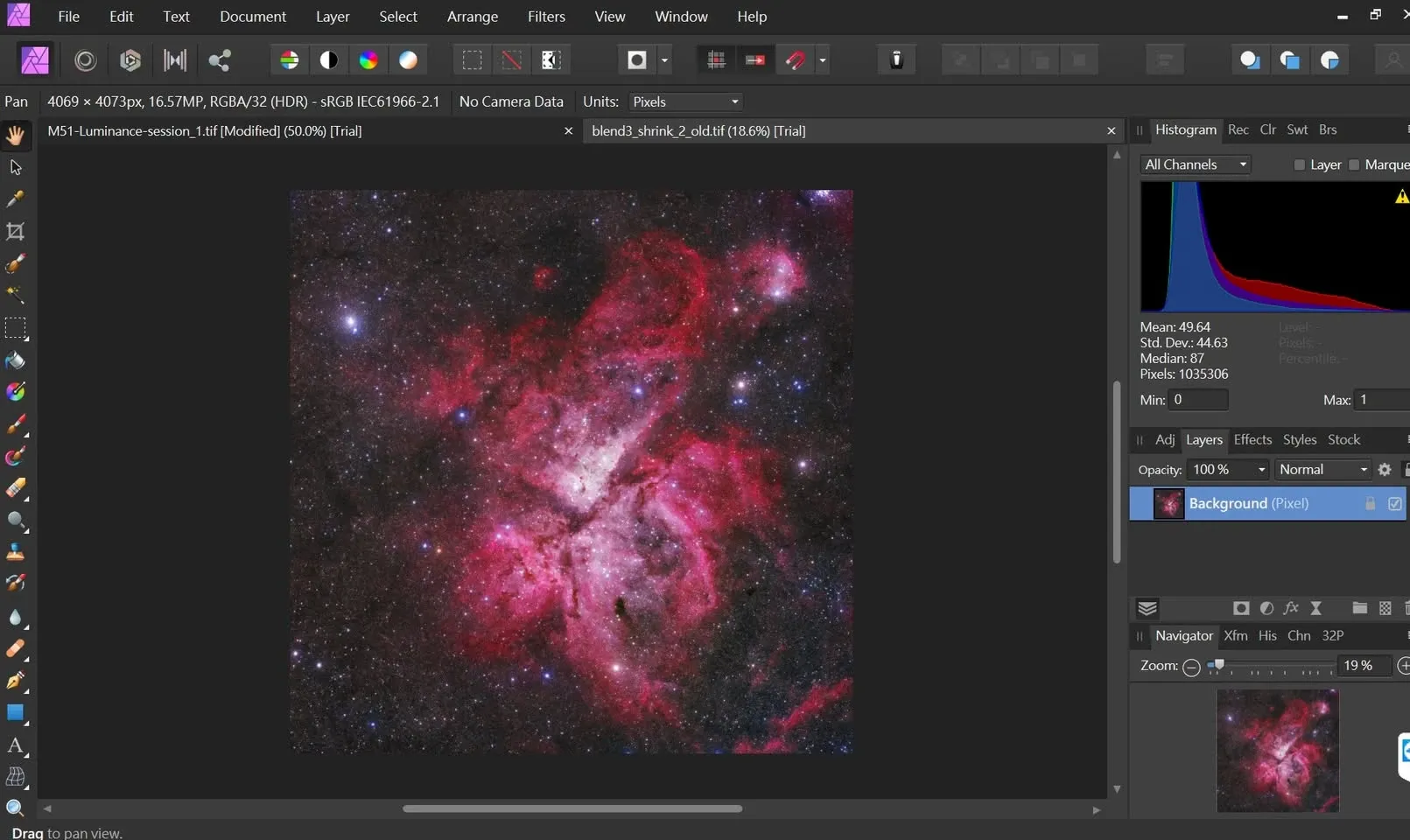
When I open a 32-bit image in Photoshop, the display often goes wrong. The reason is that Photoshop treats a 32-bit image as some kind of linear image and applies a Gamma Transformation to it, and the result is that the whole image is stretched extremely bright. To make matters worse, this can’t be fixed by adjusting Photoshop’s 32-bit display settings. By comparison, neither PixInsight nor Affinity Photo has this problem.
How to Make the Image Visible on Screen in the Linear State
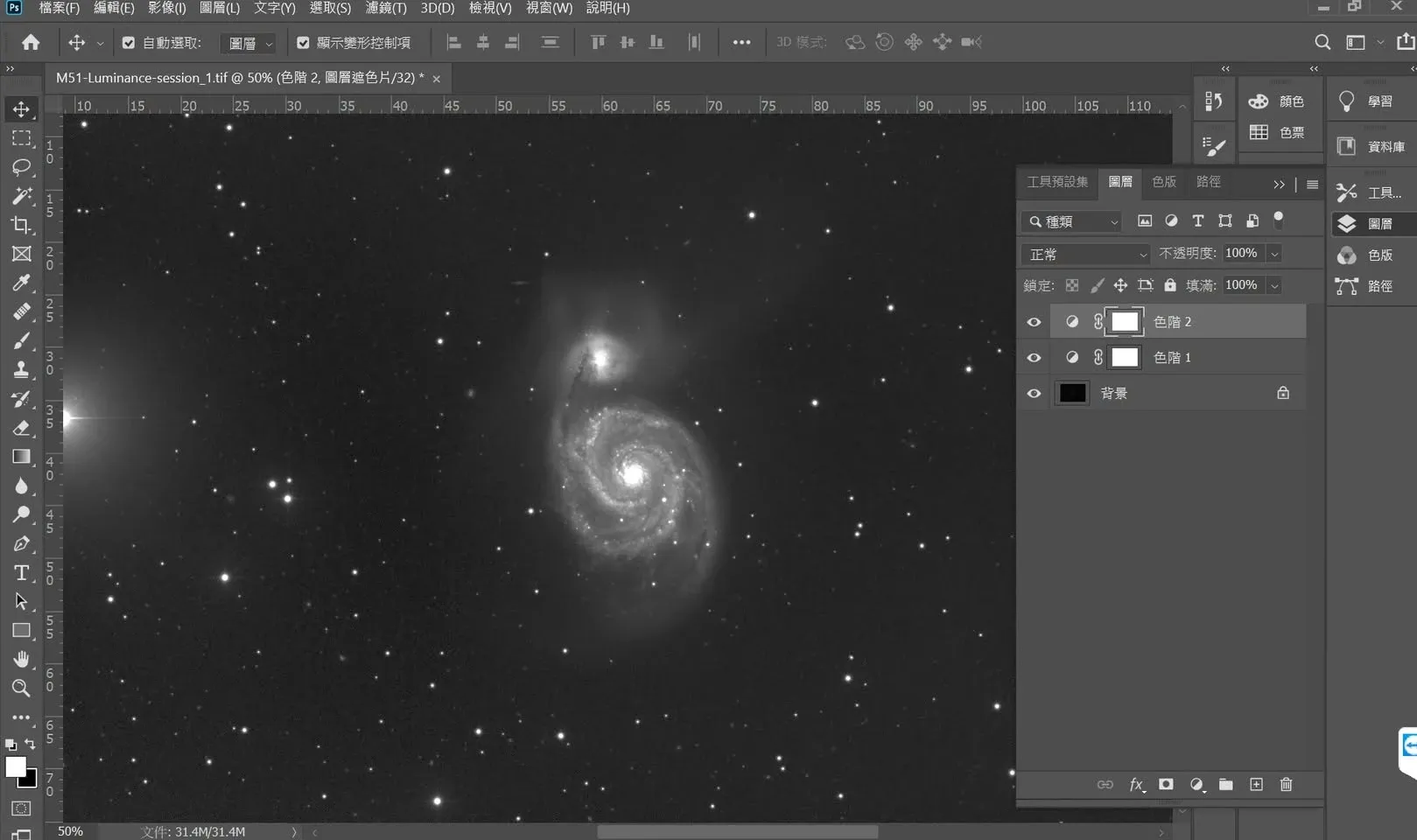
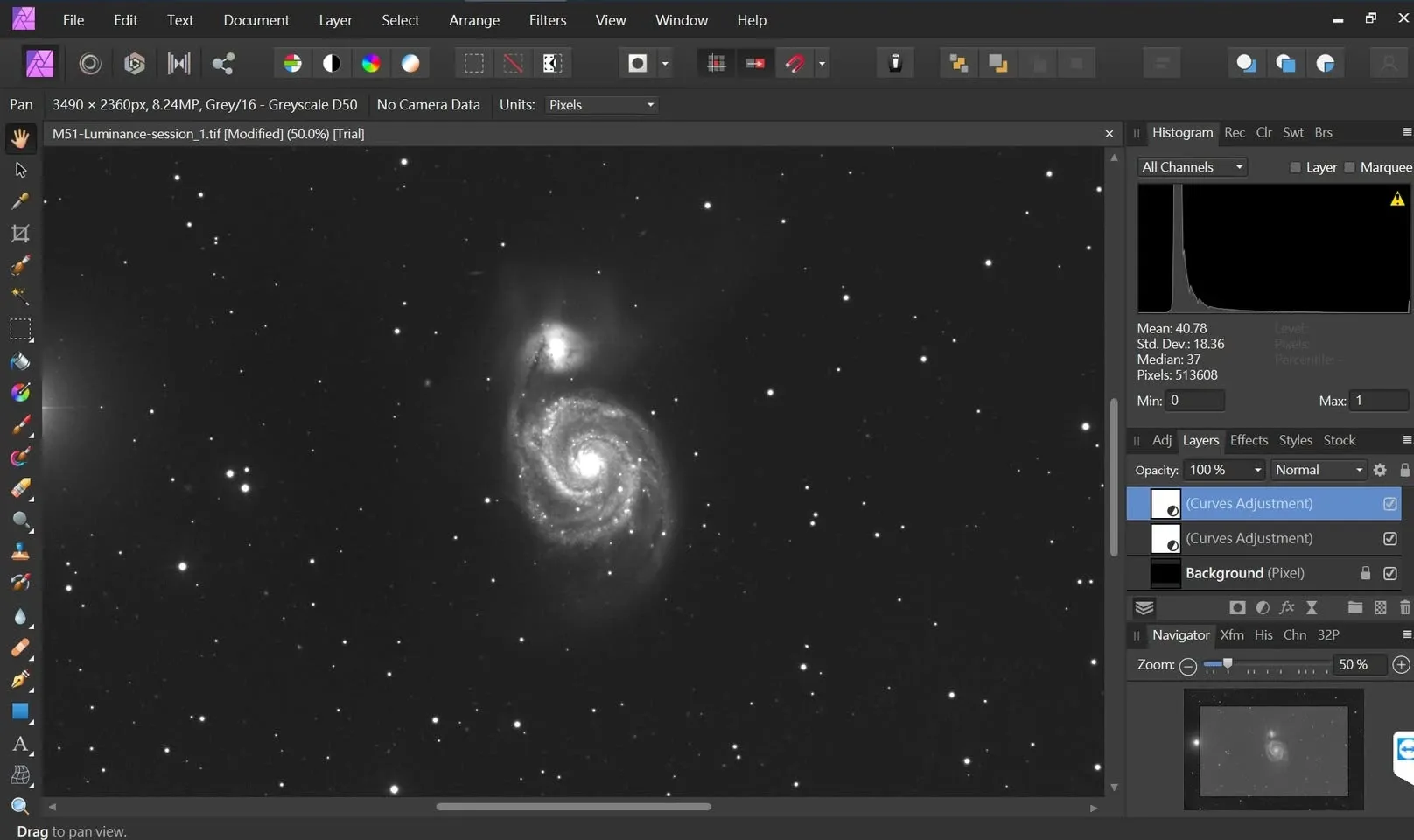
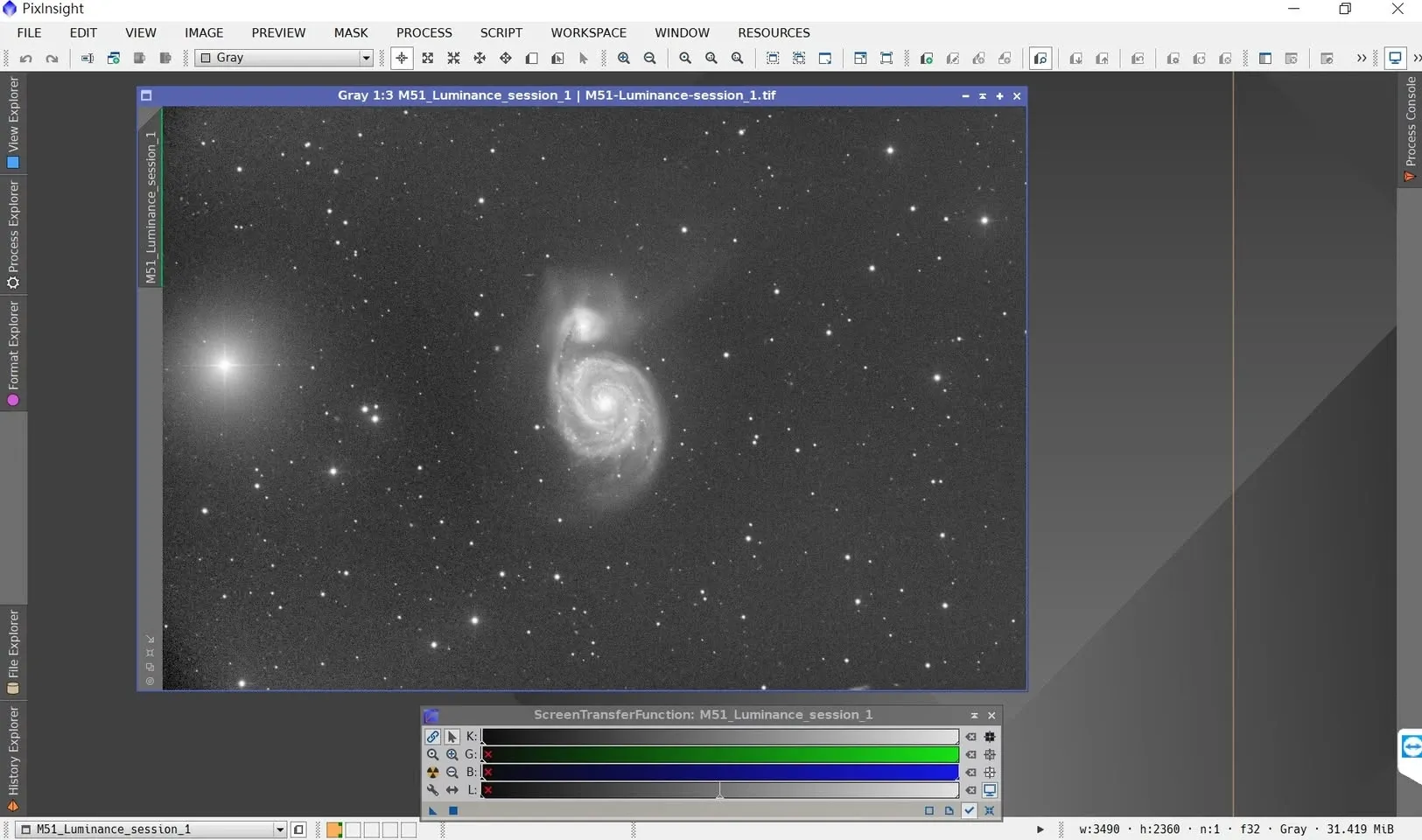
In the linear state, an image left unprocessed is usually close to pitch black on screen, so every program needs some way to “affect only the display, without altering the actual data” to let us see the image:
- Photoshop and Affinity Photo: use two Levels adjustment layers to stretch the image up into a visible range.
- PixInsight: uses the STF (Screen Transfer Function) screen auto-stretch.
That said, on Photoshop I’m still not entirely sure the picture I see on screen matches the actual data—because, as mentioned above, it automatically applies a Gamma Transformation to 32-bit images, which casts doubt on the credibility of the displayed result.
Conclusion and Recommendation
Photoshop’s compatibility with 32-bit images isn’t great. If you need to use Photoshop in your workflow, my advice is: convert the image to 16-bit before going into Photoshop, or switch to software with better compatibility (such as Affinity Photo) to handle this stage. This lets you avoid the trouble of a Gamma being applied automatically and the display not matching the actual data.