AI Denoise Comparison: NoiseXTerminator, Photoshop, Lightroom
This article is compiled from notes taken in 2023. Some of the tools or workflows have since been updated, so please keep that in mind while reading.
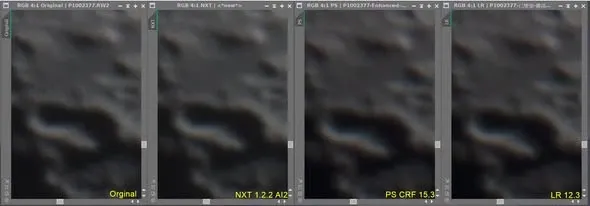
Over the last couple of days I went around in a few circles and finally got a clear picture of Adobe’s AI denoise in Photoshop and Lightroom, and while I was at it I compared it against NoiseXTerminator (NXT), a tool commonly used in astrophotography. Let me give the conclusion first: the effect of AI denoise is quite remarkable (see the result in Figure 1).
Test Setup
Software
- Photoshop 2023, with Adobe Camera Raw 15.3 installed
- Lightroom 12.3
- NoiseXTerminator 1.2.2 AI2
Hardware
- AMD R9-7950X with nVidia RTX 3060 12G
Raw source files: RAW files from a Panasonic G9
A Few Things I Noticed During Testing
One, a denoised DNG file must be opened in Adobe software. If a denoised DNG file produced by Photoshop or Lightroom is opened in other software (such as PixInsight or Affinity Photo), you won’t see the denoise result at all. For the comparison in Figure 1, I had to save the DNG file as a TIFF before I could open it in PixInsight and see the denoise effect.
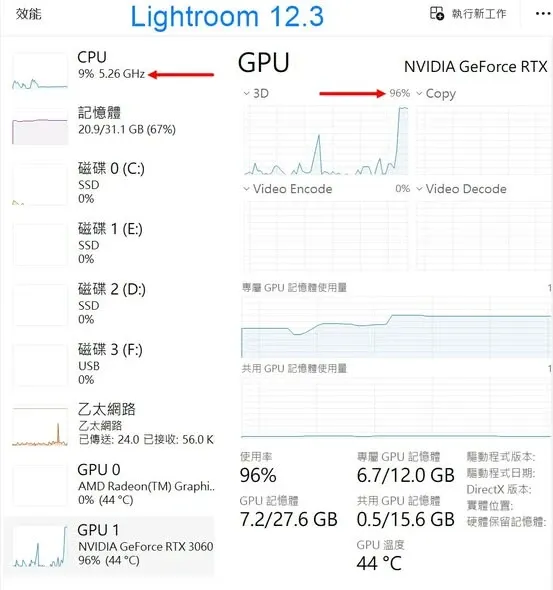
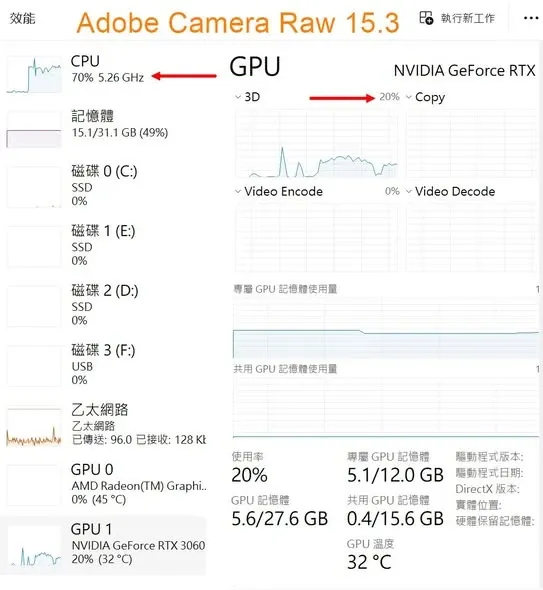
Two, Photoshop and Lightroom use resources very differently. Even though both are products from the same company, their CPU and GPU usage differ noticeably (see Figures 2 and 3):
- Photoshop’s AI denoise only uses the GPU partially, with the main computation still relying on the CPU, so it’s slower, taking about 5 to 7 minutes (when testing on a gaming laptop, it couldn’t even use the GPU at all and could only compute on the CPU).
- Lightroom mainly uses the GPU, so it’s very fast, finishing in under about 10 seconds.
- As for NXT, as in earlier tests, when configured correctly it also finishes in under 10 seconds.
Three, Adobe’s AI denoise only takes camera raw files. Photoshop and Lightroom’s AI denoise has an important limitation: it must be a camera (or phone) raw file to be processed; they don’t accept FITS files from cooled cameras, or files like TIFF. So in practice, it’s limited to users who mainly shoot single frames with a digital camera; for the post-stacking and similarly processed files in astrophotography, Adobe’s AI denoise is of no use. And this is precisely the value of a tool like NoiseXTerminator, designed specifically for astro workflows.